Platform
Where your work lives
Your home page, your assignments, your progress, your notes — and what the simulator session is.
Four pages hold everything you do. They are all in the menu bar at the top.
Dashboard — what to do next
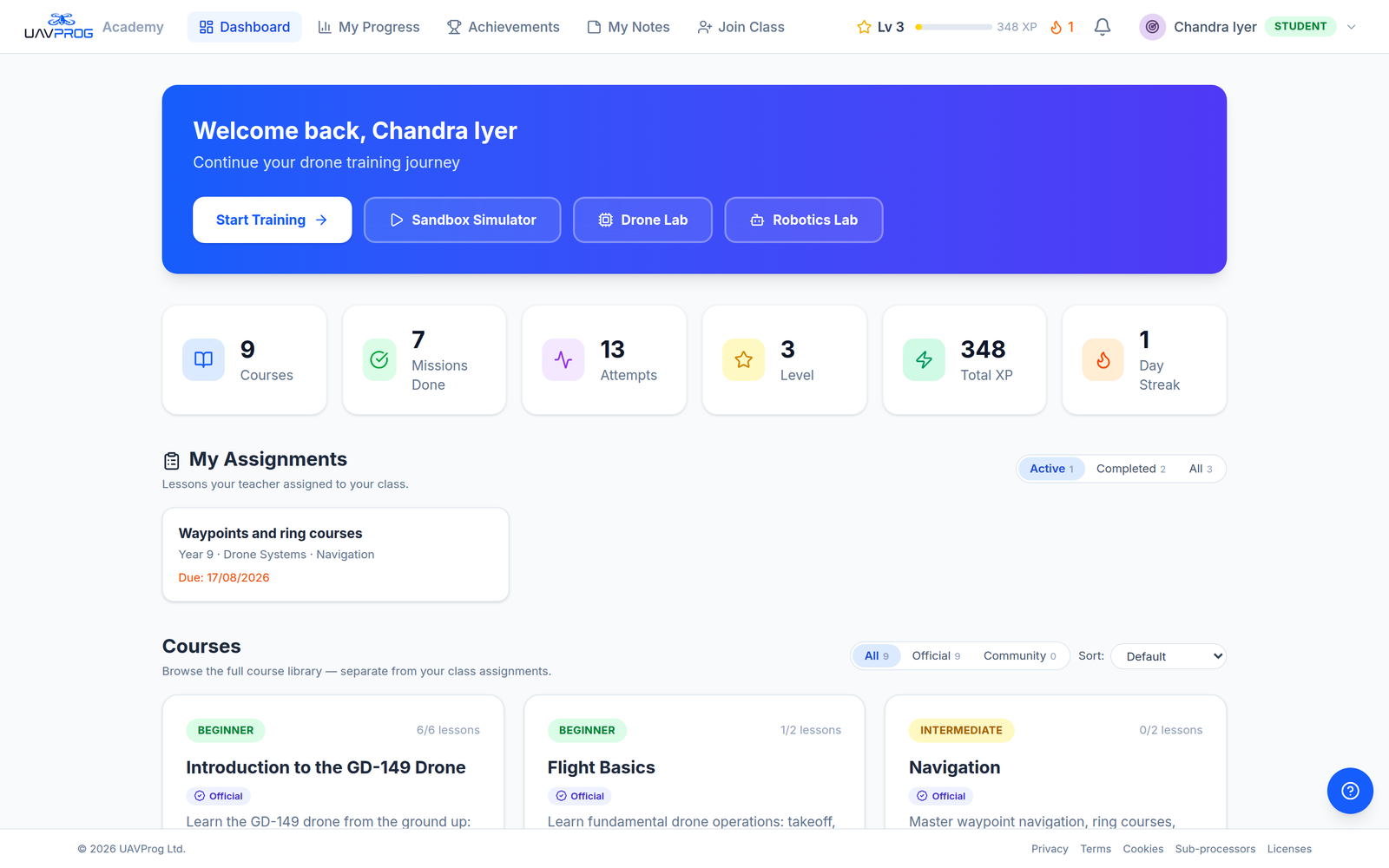
Your home page. Assignments first if you have any, then the whole library.
Four buttons across the top start something immediately:
| Button | What it opens |
|---|---|
| Start Training | The next lesson you have not finished |
| Sandbox Simulator | A drone and an empty world. No lesson, no marking — just fly |
| Drone Lab | Build a drone from parts |
| Robotics Lab | The robotics simulator |
Under that, three counters — how many courses exist, how many missions you have finished, how many attempts you have made.
Then two lists, and it is worth knowing they are different things:
My Assignments — “Lessons your teacher assigned to your class.” These have due dates. Filter them by Active, Completed or All. If you have no teacher, this section is not there.
Courses — “Browse the full course library — separate from your class assignments.” Everything on the platform, whether or not anyone set it for you. You can work through any of it, any time, for your own interest. It still counts towards your progress.
Courses carry a small label: Official means UAVProg wrote it, Community means a teacher did, with their name underneath.
My Progress — what you have done
Four numbers at the top: your Lab Score (your average), Missions done out of the total, Attempts, and Theory quizzes finished.
Then a Next Up button that takes you straight to wherever you stopped.
Below that, two sections:
Class Assignments — grouped by class, then by assignment, then every mission with your score, whether it was completed or failed, and how long it took.
Course Progress — every course, expandable. Inside, your Lab Missions with their scores and attempt counts, and your Theory quizzes with the percentage and how many questions you got right.
My Notes — what you wrote down
While you read a lesson you can highlight any part of it and write yourself a note. This page collects all of them in one place.
You can search them, filter by course, and filter by colour:
| Colour | What it means |
|---|---|
| Important | Worth coming back to |
| Interesting | Caught your eye |
| Understood | You have got this |
| Confusing | You have not, yet |
Empty at first — it says “Start highlighting text in your lessons to build your notes”.
Join Class — typing a class code
One box. Type the code a teacher gave you, and you are in their class.
Safe to use even if you already have an account with your own email — you keep the account, the email and your work. See Learning on your own.
What happens when you open a lesson
The lesson is on the left. The blocks are in the middle. The drone is on the right.
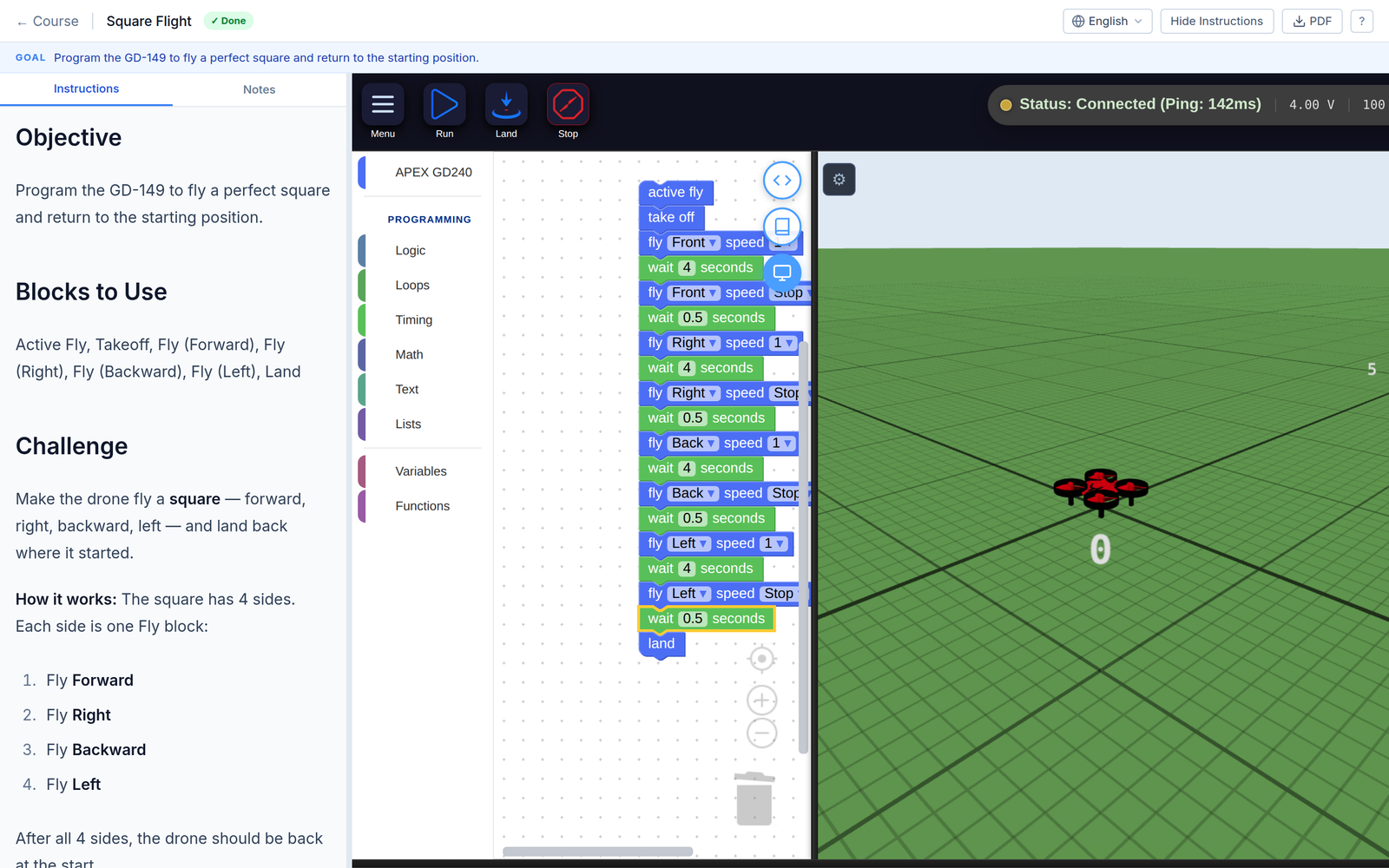
One lesson. Read on the left, build in the middle, watch on the right.
You drag blocks together to make a program, press run, and the drone flies what you built. What each block does is in the Blocks section.
The waiting screen
The first time anyone at your school starts a session that day, it takes one to two minutes: a machine has to wake up for you. The screen tells you which stage it is on — “Preparing a machine for you…”, then “Downloading the editor…”, then “Starting the drone simulator…”.
After that first one, launches take seconds.
If it fails, the screen says so and there is a Try Again button. Press it once. It usually works.
Your session closes itself
- After 15 minutes of nothing happening. Two minutes before, you get a warning with a Stay active button.
- After 4 hours, regardless.
Nothing is lost. Every mission you finished is saved, and so is your saved work. Press launch and carry on.
One at a time
You get one simulator at a time. Opening a lesson in a second tab does not start a second one — it reuses the one you have.
If a lesson looks wrong rather than broken, press End Session on the workspace and open the lesson again. That resets the environment and takes about five seconds.
Things that are not you
- “Complete the previous lesson to unlock” — the course is in order. Finish the one before.
- “Submission limit reached” — your teacher set a limit on how many tries this assignment allows and you have used them. Only they can give you more, so ask.
- “Not part of your class” — you found a lesson your teacher did not set, in a course that is class-only. The message points you back.
- Your drone keeps crashing — that one is you, and it is fine. Look at the order of your blocks.
Related
- Joining your class with a code
- Learning on your own
- Blocks — what each block does, and building your first program