Platform
Learning on your own
Signing up with your own email, the 14-day trial and what happens when it ends, and joining a class later.
Nobody has given you a class code. You want to learn this yourself. This is your page.
You need a browser and an email address. That is the whole list — there is nothing to install, and the drone is simulated, so you do not need one.
Signing up
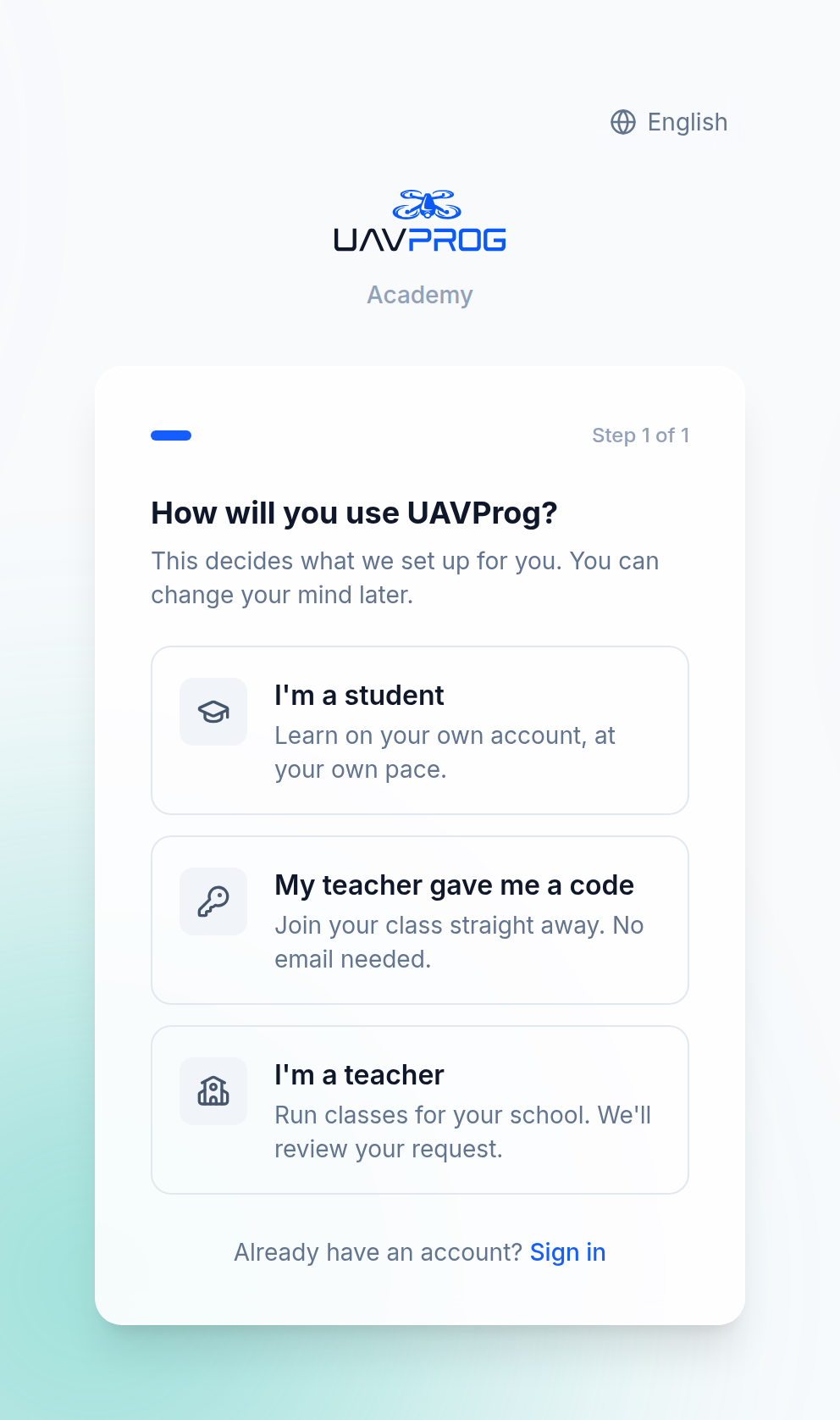
Choose “I'm a student” on the first screen
The first screen asks how you will use UAVProg. The first option — “Learn on your own account, at your own pace” — is you.
Take the middle option instead only if somebody has actually handed you a class code.
Make your pilot card
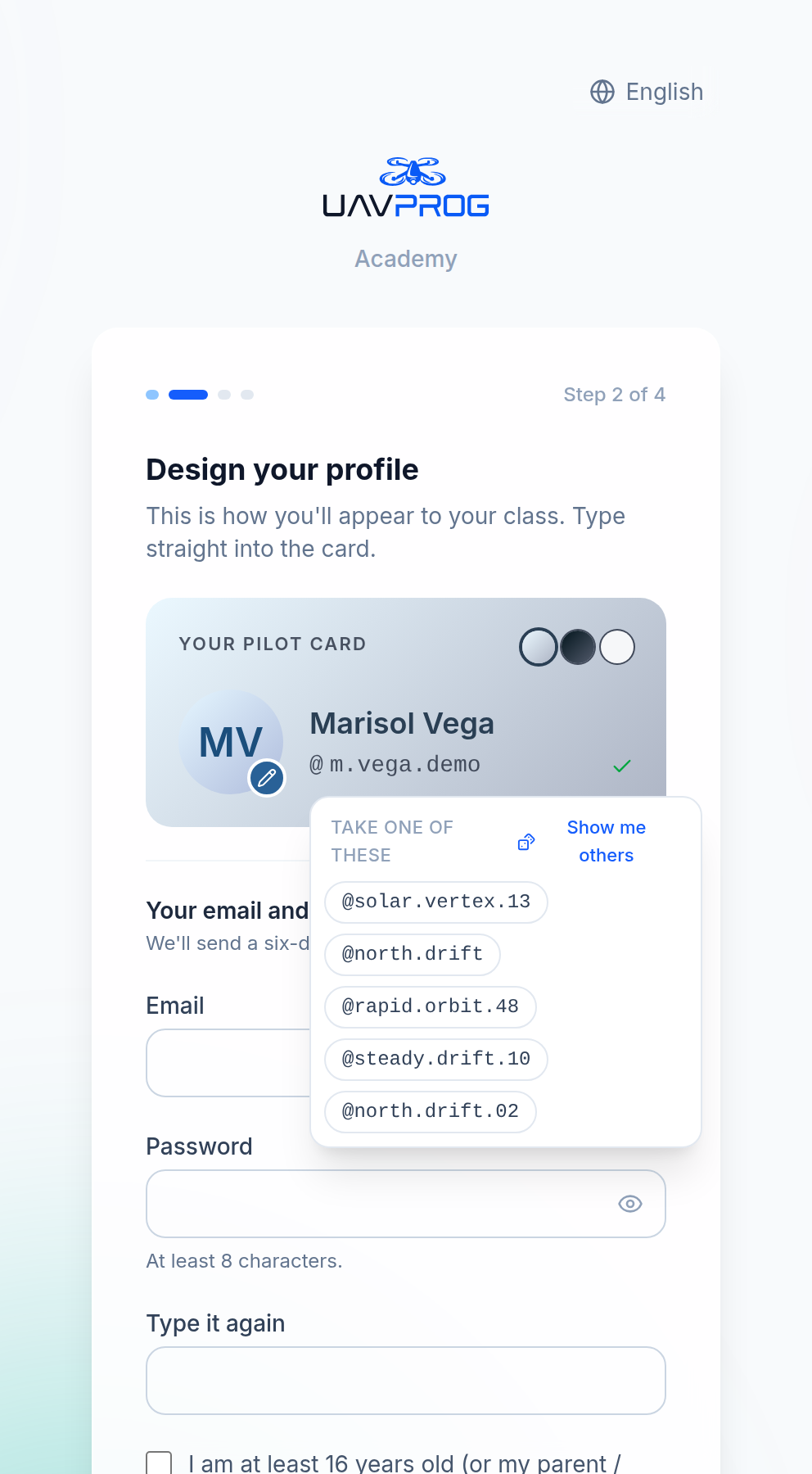
Your name, a callsign, and a badge.
The callsign is a short public name. It is also a second way to sign in — either your email address or your callsign works, with the same password. It is 3 to 24 characters: lower-case letters and numbers, and you may use
._-in the middle.If nothing comes to mind, the field suggests some. Every suggestion it offers is genuinely free, so one of them will always work.
Confirm your email
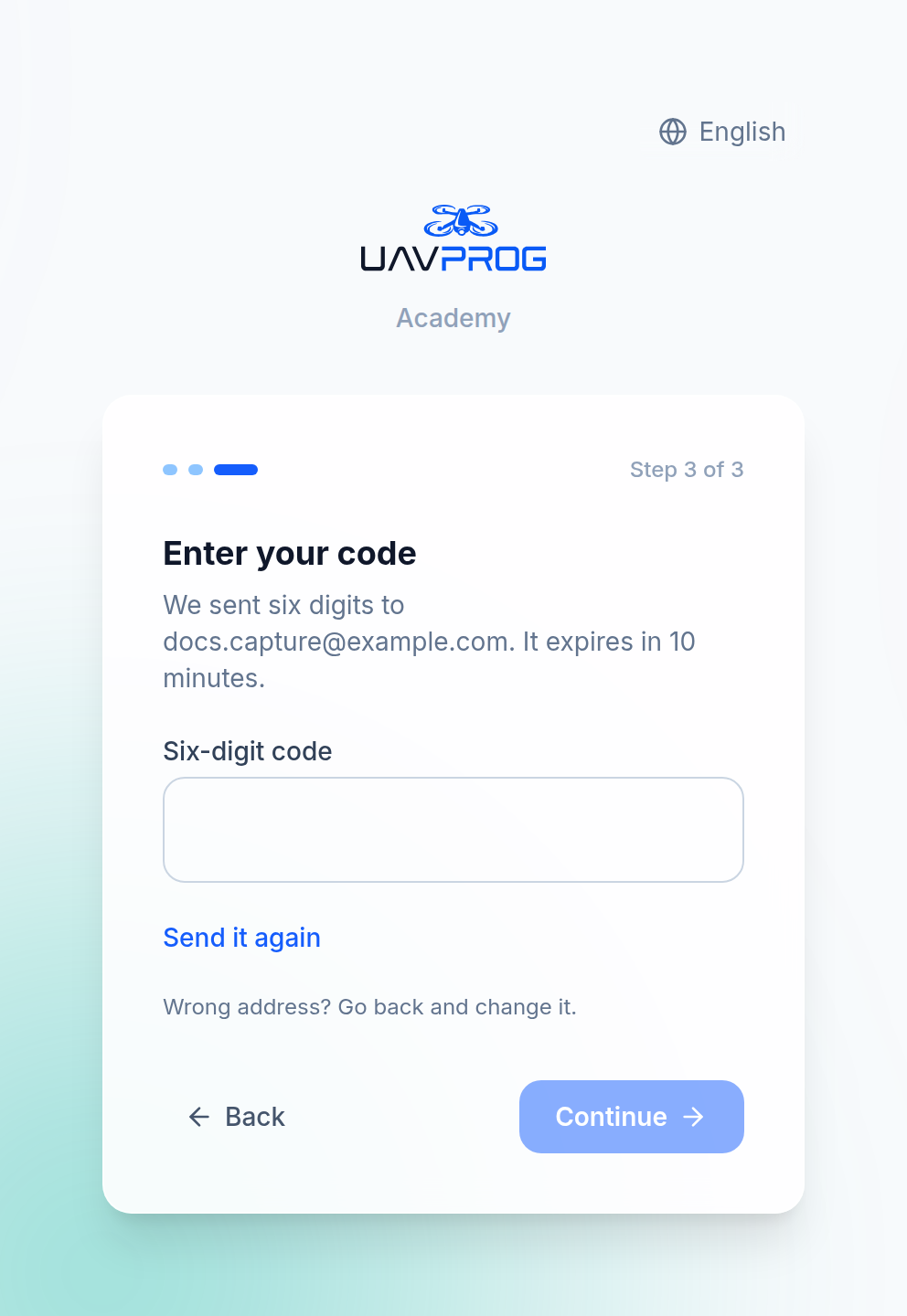
We send six digits to your address. Type them in.
They expire after ten minutes. If yours does, press Send it again. If you typed the address wrong, go back one step and fix it — a fresh code goes to the new address.
Your account is created when you finish. Everything before that lives only in your browser, so if you close the tab half way through, nothing has been saved.
Your 14-day trial
A new account starts on a 14-day Pro trial. No card, nothing to cancel.
When the two weeks are up you move to the Free plan. Nothing is deleted:
When the trial ends you move back to Free — your progress, notes and workspaces stay.
That is the product’s own promise, and it is worth reading carefully, because it means the trial is not a countdown on your work. It is a countdown on a few extra features.
What stays free forever
- The core course catalogue, with guided missions
- Block coding and 3D drone simulator sessions
- The circuits, embedded (Arduino) and robotics labs
- Progress tracking, notes and achievements
What Pro adds
- The full catalogue, including the advanced tracks
- The hardware lab — flying a real drone through UAVProg Link
- PDF export for your notes and progress reports
- Priority email support
Joining a class later
If a teacher gives you a class code afterwards, use the Join Class tab in the menu bar and type it in. You keep the account you already have.
This matters more than it sounds:
- You keep your email address, so you keep the ability to reset your own password. Your teacher cannot reset it for you, and should not be able to — the account is yours.
- Your existing work comes with you. Nothing is reset.
- Your teacher’s assignments appear under My Assignments on your home page, alongside everything you were already doing.
Joining a class does not turn your account into a school account. It is a door, not a conversion.
If you forget your password
Press Forgot password? on the sign-in page. A reset link goes to your email address.
This is the part a class-code student does not have — see Joining your class with a code if that is actually you.
Signing in with Google
If Google sign-in is switched on, you can use it instead of a password. It is the same account either way.
Next
→ Where your work lives — the tour of your own pages: home, progress, notes, and the simulator.