
Platform
Joining your class with a code
Your teacher gave you a code. Here is how to join, how to sign in afterwards, and what to do if you forget your password.
Your teacher gave you a code. It looks something like SKYLARK7.
This page is for you. It is short, and nothing on it is hard.
What you are about to make
An account with no email address. That is on purpose. You do not need one, nobody has to ask your parents for one, and there is nothing to check.
Instead you pick a callsign. That is your name for signing in.
Joining
Five screens. No email, no waiting.
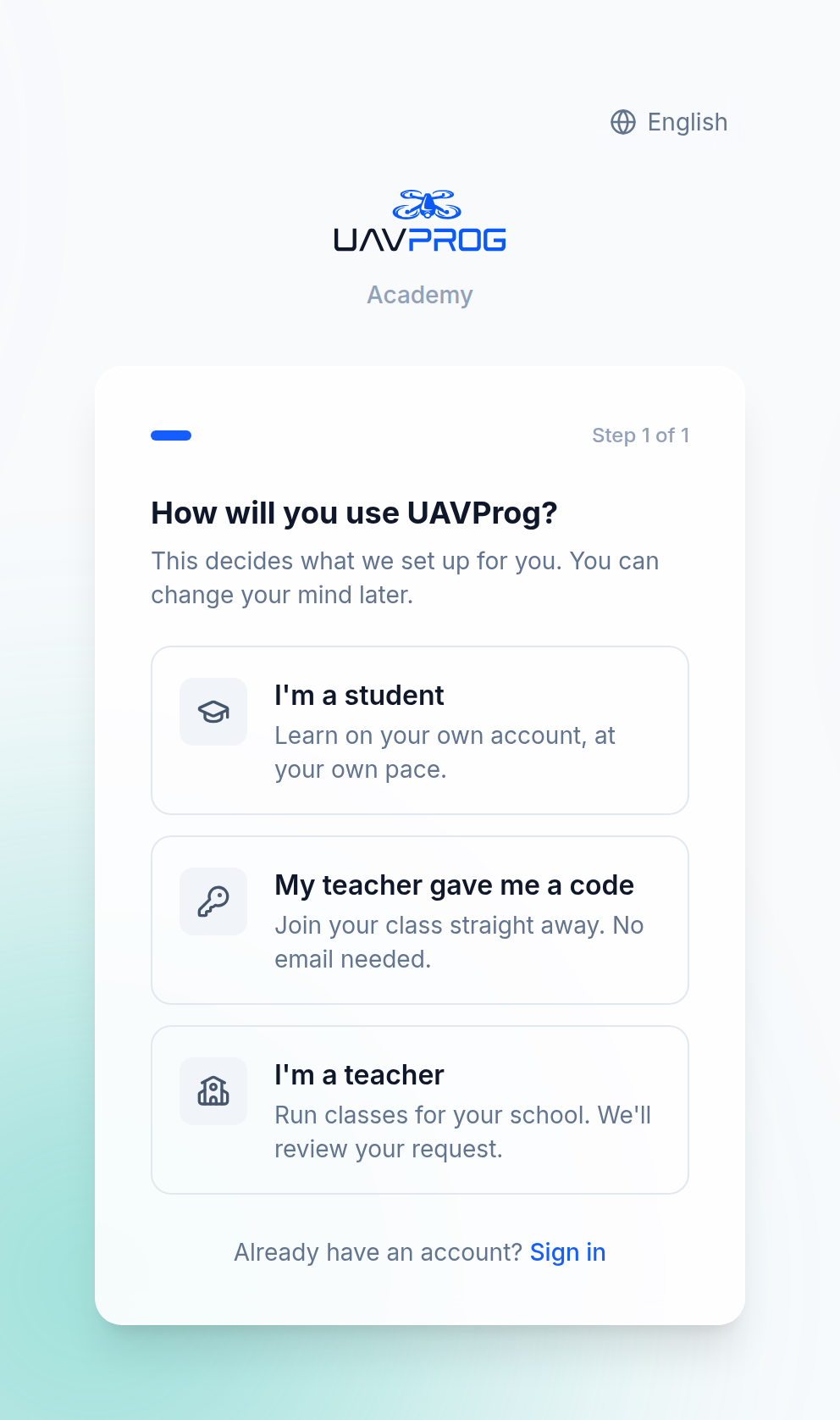
Press the middle button
The first screen asks how you will use UAVProg. Press My teacher gave me a code.
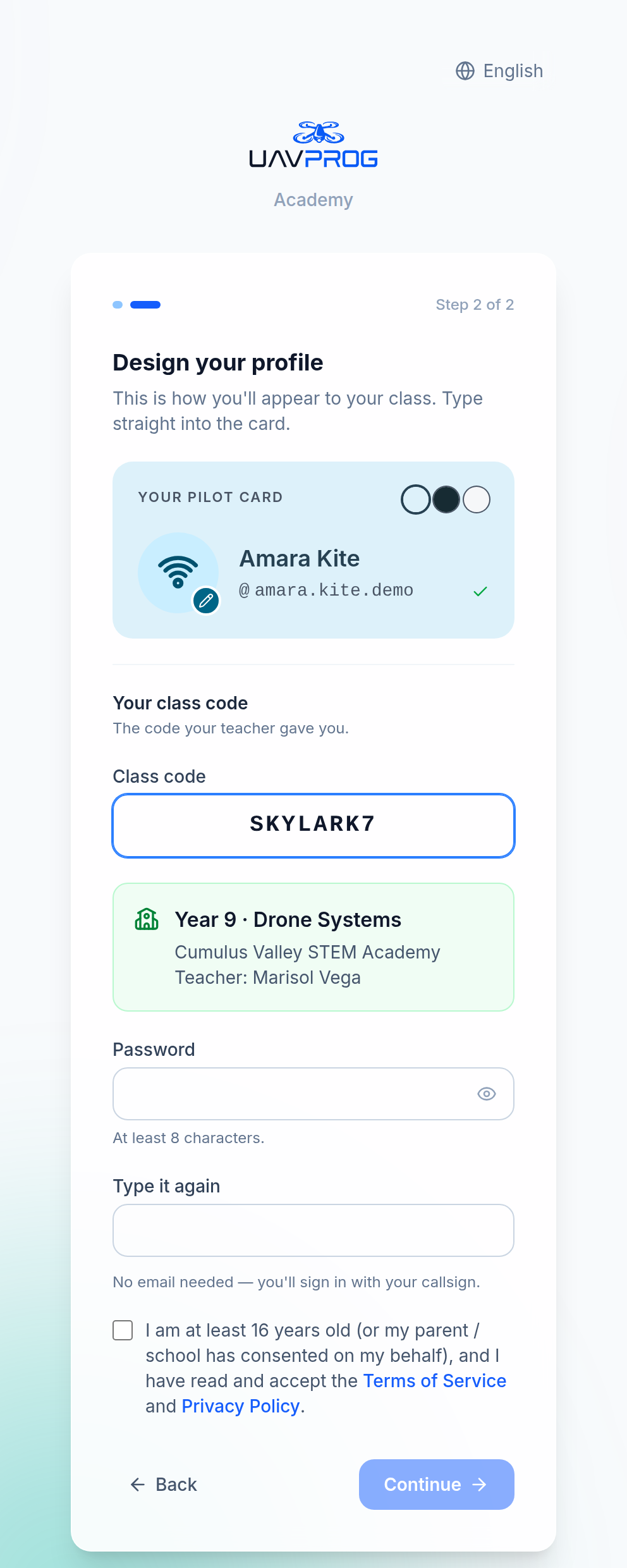
Type your class code
Type the code your teacher gave you. Capital letters or small ones — it does not matter.
The screen will show you the class, the school and your teacher’s name. Check that it says your teacher. If it says someone else, you typed it wrong. Try again.
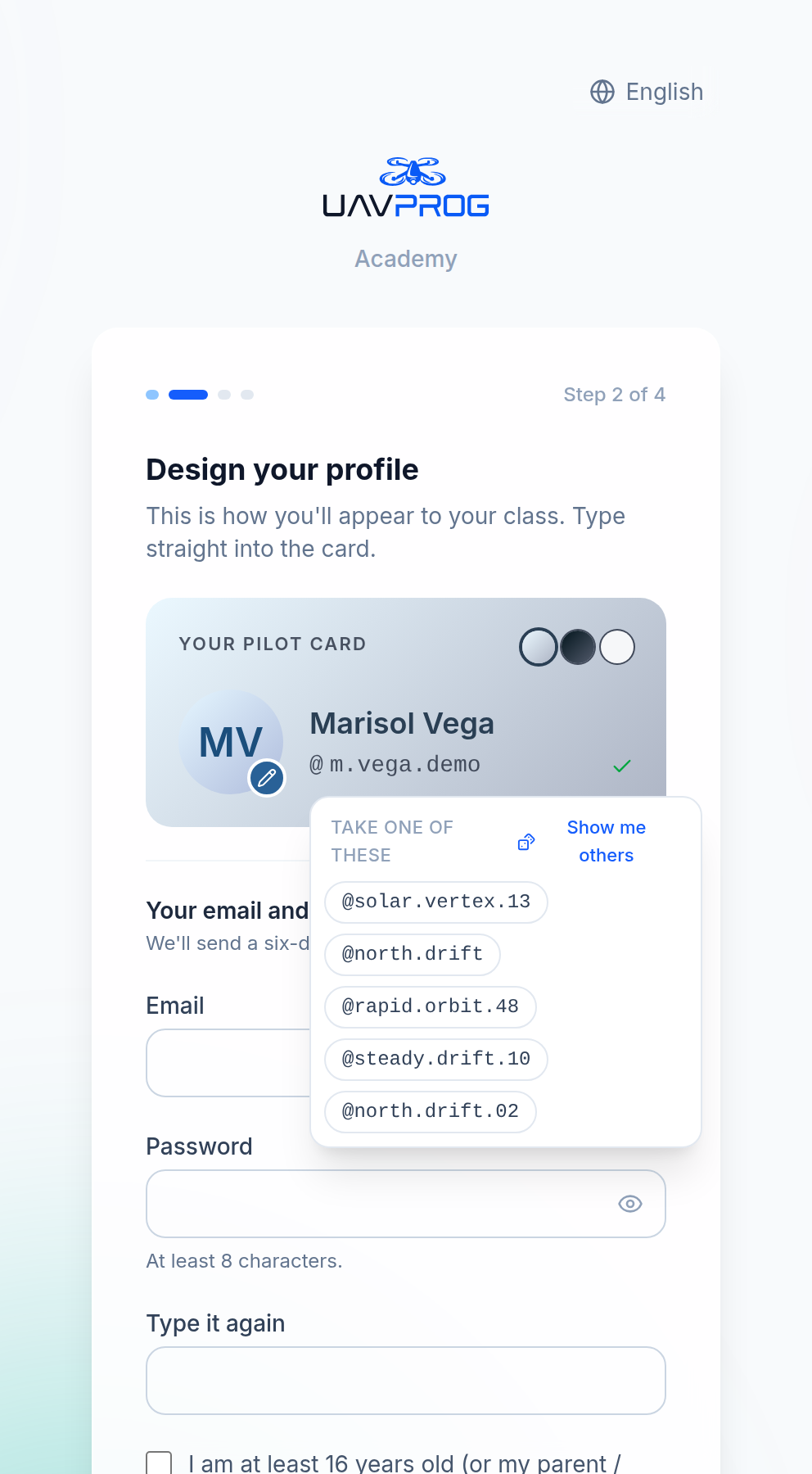
Choose your name and callsign
Your name is what your teacher sees. Use your real one, so they can find you.
Your callsign is what you sign in with. It can be anything you like, as long as nobody else has taken it. The screen tells you straight away whether it is free.
Stuck? The box offers you some ready-made ones. Any of them will work.
Pick a badge
A picture and a colour. This is just for fun, and you can change it whenever you want.
Choose a password
Pick something you will remember. Type it twice so you know you typed it right.
There is a small eye button — hold it down to check what you typed. Let go and it hides again.
That is it. No email, no code to wait for, no waiting at all.
Signing in after that
Go to the sign-in page and type:
- your callsign — not an email address, you do not have one
- your password
If you forget your password
Ask your teacher. Only your teacher can fix this.
Do not press “Forgot password?” — it sends an email, and you do not have an email address, so nothing will arrive.
Your teacher will give you a new password to use once. Sign in with it, then change it to something you will remember.
When your teacher does this, you get signed out on every device. That is normal. Sign back in with the new password.
What you can do
Everything a student can do:
- Work through the lessons your teacher set you. They are on your home page under My Assignments.
- Explore any other course in the library, whether or not it was set.
- Fly the drone simulator as much as you want.
- Highlight things in the lessons and keep your own notes.
Where your work lives is the tour of your own pages.
Two things people ask
“Can I add an email later?” Yes. At the top of your home page there is a small message: “This account has no email address. Add one so you can get back in if you forget your password.” Press Add an email, and after that you can reset your own password without asking anyone.
This is worth doing before you leave the school, because after you leave, your old teacher cannot help you any more — they can only reset passwords for students in their own class.
“What happens if I leave the class?” Nothing happens to your work. It is all still there. But your teacher will not be able to reset your password any more, so add an email first if you can.
If you are stuck
- The screen says “No class has that code” — you typed it wrong, or the class has been closed. Check with your teacher.
- The screen says the class is full — your teacher needs to sort that out. Tell them what it said.
- The callsign you want is taken — somebody has it already. Try adding a number, or take one of the suggestions.
- You cannot sign in and you are sure the password is right — check you are typing your callsign, not your name. They are often different.
Next
→ Where your work lives — your home page, your lessons, and where your scores are kept.