
Platform
Running a lesson
What happens on your students' screens, why the first launch of the day is slow, and what to do when something will not start.
Thirty children, thirty browsers, one lesson. This is what actually happens and what to do when it does not.
What each student gets
When a student opens a lesson, the platform starts a session for them — their own private drone simulator, running on UAVProg’s machines, reached through their browser. Nothing is installed on the school computer. Nothing is shared between children: one student crashing their drone cannot affect anyone else’s.
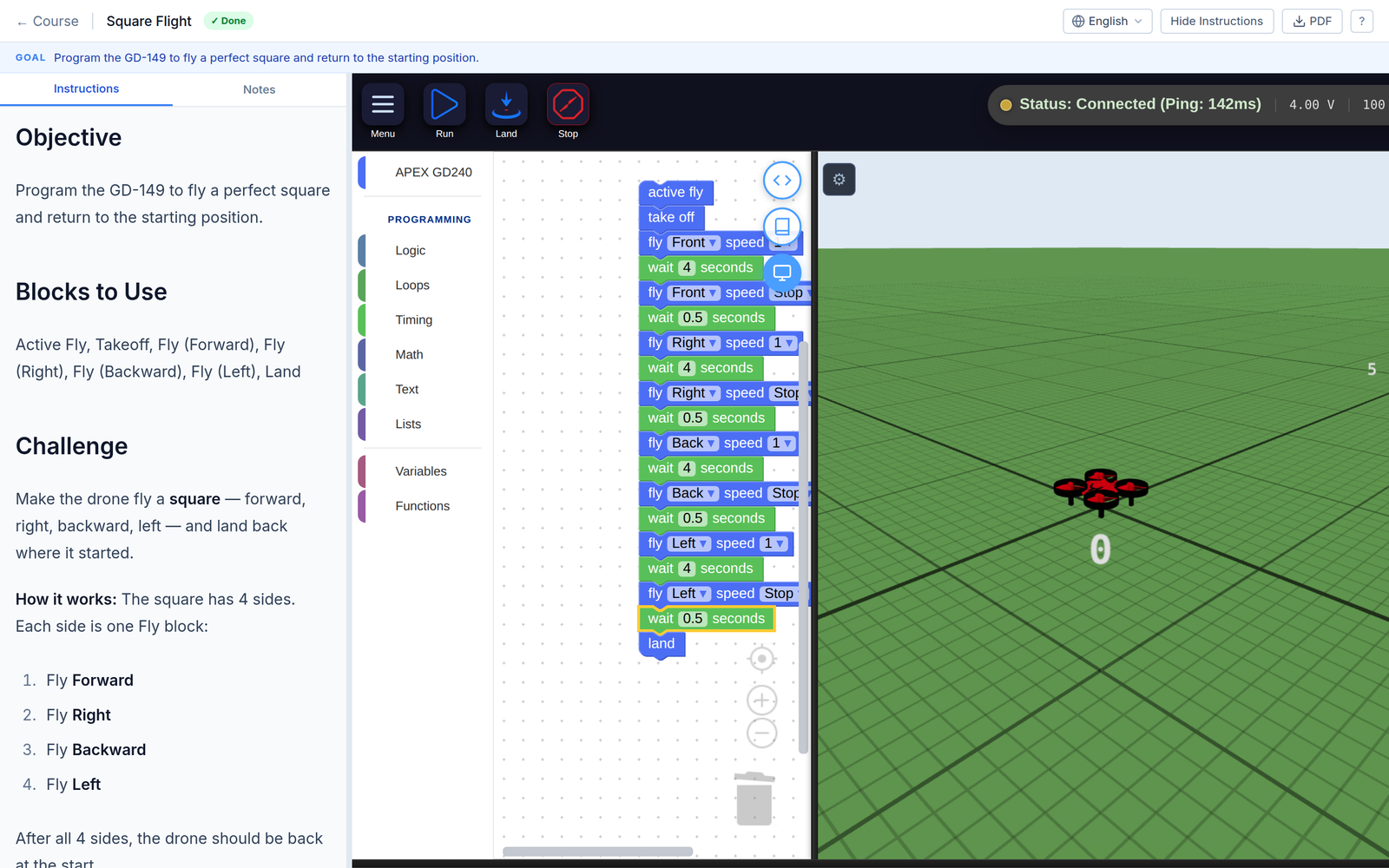
The lesson screen. Brief on the left, blocks in the middle, the drone on the right. The panels can be dragged wider or narrower.
They read the brief, drag blocks together, press run, and watch. If the flight meets the mission’s objectives they pass, and it appears on your dashboard within seconds.
Before the lesson: the five-minute checklist
- Is the assignment published? Draft assignments are invisible to students. The Assignments tab shows a Draft label on anything unpublished.
- Do you have the class code somewhere visible? Any child who missed the first lesson will need it.
- Have you flown the lesson yourself? Fifteen minutes, and you will know which mission is the hard one before thirty children find out.
- Are they on a real browser? Chrome, Edge, Firefox or Safari, kept reasonably up to date. The 3D view needs a graphics-capable browser; very old tablets and locked-down kiosk browsers can struggle.
- Start your own session five minutes early. This matters more than it sounds — see below.
Why the first launch of the day is slow
This is the single most common “it’s broken” that is not broken.
Nobody has to wait in a queue behind anyone else — each student gets their own — but the first one through the door pays for warming the building up. If that is you, five minutes early, your class never notices.
One session each, and only one
A student can have one live session at a time. That is not a licence limit; it is what stops a single child quietly holding six simulators open.
In practice this means:
- Opening a second lesson in a second tab does not start a second simulator. It reuses the one they already have. This is normally invisible and fine.
- Refreshing the page, or going back to a lesson they left, reconnects them to the session they already had rather than starting again.
Sessions close themselves
- After 15 minutes with nothing happening. Two minutes before it closes, the student gets a banner — “Your session will close soon due to inactivity” — with a Stay active button. Anyone actually working never sees it.
- After four hours, regardless.
Closing a session loses nothing. Every completed attempt, score and saved workspace is already stored. They press launch and carry on.
Tell the class this once at the start of the term. A child who thinks a closed session has eaten their work will not tell you; they will just start again from scratch, badly.
When something will not start
Work down this list. It is ordered by how often each one is the answer.
Wait, and read the screen
If it says “Preparing a machine for you…” with a timer running, it is working. Give it two minutes. The most common cause of a broken lesson is thirty children pressing Try Again at ninety seconds, which starts the wait over.
Press Try Again — once
If it has actually failed, the screen says so, plainly and without blaming anyone: “Your simulator session failed to start. This is on us — try again and it will usually work.”
That message is accurate. One retry fixes most of them.
End Session, then launch again
If the editor loads but the drone never appears, or the connection banner says “Connection to your session was lost”, there is a Reconnect button — and next to it, Close session. Closing and relaunching gives them a clean one.
Reload the whole page
Ordinary browser reload. Clears any stuck iframe.
Check the school network
The simulator holds a live connection open to keep the 3D view moving. Some school filters and proxies close connections like that. The symptom is distinctive: the editor loads fine, the drone appears, and then it freezes or never moves.
If that is happening on the school network but the same account works on a phone using mobile data, it is the network, and it is a conversation with your IT department rather than with UAVProg. The words they will need are “WebSocket connections are being closed”.
Ask for help, with two details
If it is still broken, tell UAVProg support which student and roughly when. Administrators can look up exactly what happened to that specific session — every stage it reached, every error, and the logs from inside it. Without the name and the time they are guessing; with them it is usually a two-minute diagnosis.
Things students will ask you
“Where has my program gone?” — Saved workspaces live in their account, not in the session. Ending a session does not lose them.
“It says I can’t submit any more.” — They have used the assignment’s submission limit. Only you can give them more; see Giving a student more attempts.
“I can’t open the next lesson.” — Some lessons unlock in sequence: “Complete the previous lesson to unlock.” They need to finish the one before.
“It says this isn’t part of my class.” — They have found a lesson you did not assign, in a course set to class-only mode. The message points them back to what you did assign.
“My drone keeps crashing into things.” — That is the lesson working. Send them to look at the order of their blocks.
Next
→ What you cannot see, and why — the last piece, and the one worth knowing before a parent asks you.