
Blocks
The drone's blocks
All twelve blocks in the APEX GD240 category — what each one does, what its dropdowns mean, and the line it writes.
The top entry in the toolbox is the drone’s own category, and it is the only one whose blocks do anything to an aircraft. Everything below it — Logic, Loops, Timing and the rest — is ordinary programming, and would work the same if you were controlling a lamp.
There are twelve blocks in the category. Here they all are, in the order the toolbox lists them.
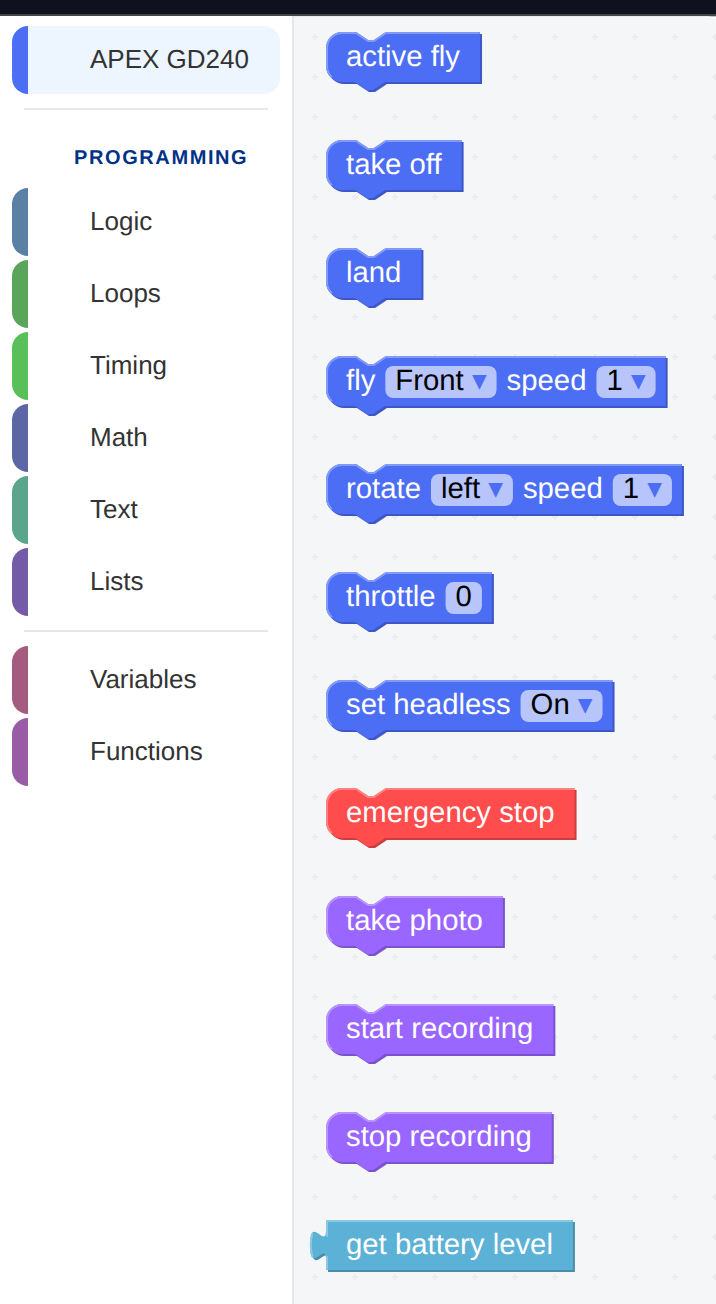
Click APEX GD240 and the twelve blocks slide out beside the rail.
The colours are not decoration. Blue blocks fly the aircraft, purple blocks work the camera, the single red block cuts the motors, and the teal one at the bottom is the odd shape out — it has no notch and no bump, because it is a value rather than an instruction. More on that at the end.
The three that start and end every flight
| Block | What it does |
|---|---|
| active fly | Arms the motors and centres the controls. |
| take off | Lifts off to about a metre and holds there. |
| land | Comes down and settles. |
None of them takes an argument, and their order is not negotiable: active fly first, land last. A drone that has not been armed ignores everything
else you ask of it, which is a safety property rather than an inconvenience —
it means a stray fly block cannot start a motor.
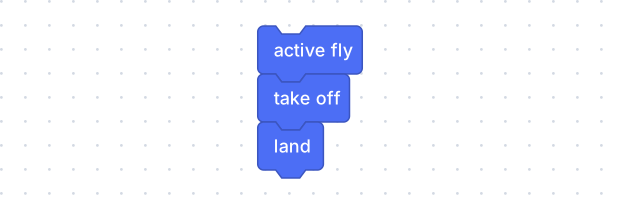
The shortest program that is a complete flight.
drone.active_fly()
drone.takeoff()
drone.land()
Moving: the fly block
fly Front / Back / Left / Right speed 1 / 2 / Stop
Two dropdowns. The first is which way, the second is how fast — or Stop,
which is the one value in that list that does not mean a speed.
The block starts a movement. It does not perform one. Control passes to the next block immediately, and the drone keeps travelling until something tells it otherwise. This catches nearly everybody once, and it is worth being precise about why: the block is a switch, not a step.
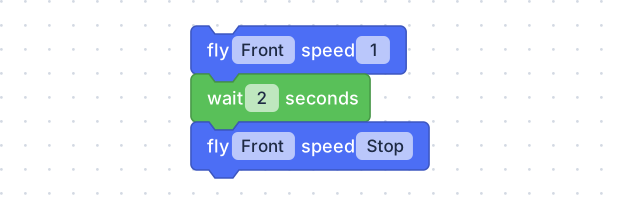
Start moving, wait, stop. The wait block is in Timing.
drone.fly('forward', 1)
time.sleep(2)
drone.fly_stop()
Three blocks for one movement is the pattern almost every flight is built out of, and once you see it you will see it everywhere: start · wait · stop.
The distance is the speed multiplied by the wait, and in the simulator the two
speeds are worth knowing exactly: speed 1 is half a metre a second, speed 2
is one metre a second. So speed 1 for 2 seconds and speed 2 for 1 second
land in the same place, and there are two knobs for the same thing.
Turning: the rotate block
rotate left / right speed 1 / 2 / Stop
The same shape as fly and the same warning. It spins the aircraft on the
spot and keeps spinning until a Stop.
drone.rotate('right', 1)
time.sleep(1)
drone.rotate_stop()
The angle turned is the speed multiplied by the wait, exactly as distance was, and the two rotate speeds are worth knowing as exactly as the two fly speeds: speed 1 turns about 29° a second, speed 2 about 57°. The one above is a second at speed 1 — a nudge of under a third of a right angle, not a corner.
The two Stops are not interchangeable, and this is the detail that turns
a square into a spiral. fly with Stop writes drone.fly_stop(), which
zeroes the forward-and-sideways movement and leaves any rotation running.
rotate with Stop writes drone.rotate_stop(), which zeroes the rotation
and leaves any travel running. A drone doing both at once needs both blocks to
stop.
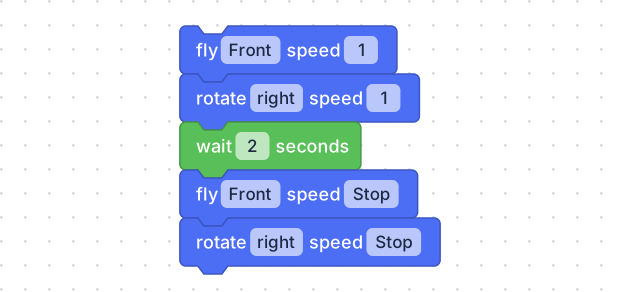
Flying and turning at once — an arc. Two movements were started, so two are stopped.
drone.fly('forward', 1)
drone.rotate('right', 1)
time.sleep(2)
drone.fly_stop()
drone.rotate_stop()Height: the throttle block
throttle 0 – 6
How hard the motors push. It is a number you type rather than a dropdown, and anything from 0 to 6 is accepted, in steps of 1.
| Value | What happens |
|---|---|
| 0 | Idle. The aircraft descends. |
| 3 | Roughly holds height. |
| 6 | Climbs hard. |
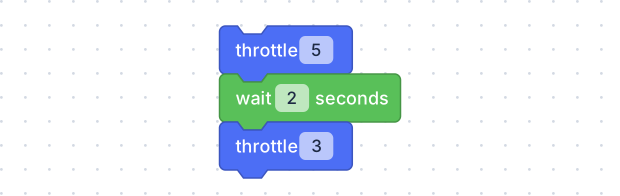
Climb for two seconds, then hold. Like fly, throttle sets a state and moves
on — the wait is what gives it a duration.
drone.set_throttle(5)
time.sleep(2)
drone.set_throttle(3)
It is start · wait · stop again, with one difference worth pointing at:
throttle’s dropdown has no Stop on it, because there is nothing to switch
off — the motors are always doing something. The third block is a second
throttle, set to 3, and 3 is what “stop climbing” means here. Setting it
to 0 does not hold the aircraft still; it drops it.
Which way is forward: set headless
set headless On / Off
Off — the default — means Front is out of the aircraft’s nose. Turn the
drone through 180° and its Front is now towards you.
On means Front is a fixed direction in the room, decided when the drone was
armed, and it stays that way no matter which way the aircraft is pointing.
drone.set_headless(True)Headless is far easier for a beginner flying by eye, and much worse for learning what a rotation does — a program that turns and then flies forward behaves completely differently under the two settings. Most lessons assume it is off.
The camera
Three blocks, none with arguments, all purple.
| Block | What it writes |
|---|---|
| take photo | drone.take_photo() |
| start recording | drone.start_recording() |
| stop recording | drone.stop_recording() |
On an aircraft, start recording runs and hands straight on, exactly like
fly — the recording continues while the rest of the program does its work,
until a stop recording block ends it.
What the drone knows: get battery level
get battery level is the one block in the category with a different shape.
It is rounded, has no notch on top and no bump underneath, and cannot stand in
the stack on its own. It goes into a hole in another block — a print, a
comparison, a set — and hands over a number.
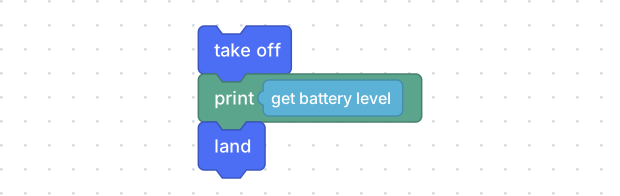
Dropped into a print block from the Text category, it writes the charge into the terminal at the bottom of the screen.
drone.takeoff()
print(drone.get_battery())
drone.land()When something is going wrong: emergency stop
emergency stop cuts all four motors, immediately.
drone.emergency_stop()The editor’s toolbar has the same two commands as buttons — Land and Stop, next to Run — and those work whether or not a program is running. Both ask for confirmation first, and both abort the program as well as commanding the aircraft. If a flight is going somewhere you did not intend, reach for the toolbar rather than for a block: by the time you have dragged a block out, it is over.
One block the lessons mention that is not here
Three lessons in the Fundamentals of Drone Flight course — Speed and Distance, Zigzag Path and Letter Shapes — list Set Speed under “Blocks to Use”. There is no such block in the toolbox.
It is not a misprint: the block exists in the editor, generates
drone.set_speed(level) and offers 1 (slow) / 2 (medium) / 3 (fast) — it is
simply not among the twelve the APEX category puts in the flyout, so nothing
you can drag will produce it. In the simulator it would not have changed the
flying anyway: fly works out its velocity from its own speed dropdown and
never consults a global setting.
What to do instead: the speed dropdown on the fly block does the same
job for a single movement. Where a lesson says “set speed 1, then fly
forward”, set the fly block’s own speed to 1. The lesson’s point — that
higher speed covers more ground in the same time — is exactly as visible.