
Blocks
When it does not work
The handful of things that actually go wrong, what each one looks like from the pilot's seat, and how to fix it.
Almost everything that goes wrong with a block program is one of about eight things, and each has a signature: the aircraft does something specific and recognisable. This page is organised by what you saw, not by what the fault is called.
In the simulator, all of it costs nothing. A student who has watched each of these happen on purpose will diagnose the next one in about four seconds.
Nothing happened at all
The most likely cause is a missing active fly. It is the block that arms
the motors, and until it has run every other flight block is ignored. No error
appears, because nothing has gone wrong — you asked an unarmed aircraft to
move and it declined.
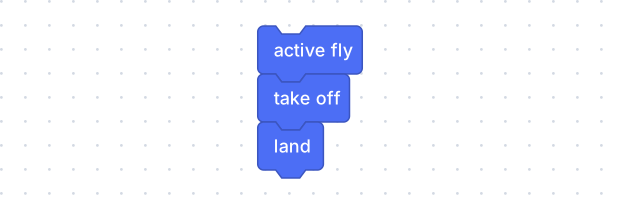
active fly goes first. Always. It is the only block with a fixed position.
Two other things produce the same symptom:
- The program is empty as far as the editor is concerned. Press the
<>button on the right edge and read the code. If your blocks are not in there, they are not connected to anything (see below). - The program already ran. The Run button turns into Stop while a program is going, and back to Run when it finishes. A three-block flight is over in a couple of seconds.
It flew off and kept going
fly and rotate are switches, not steps. They start a movement and hand
straight on to the next block; the aircraft keeps doing it until something
stops it. If the next block is land, the drone is still travelling sideways
when it touches down.
The fix is the start · wait · stop pattern:
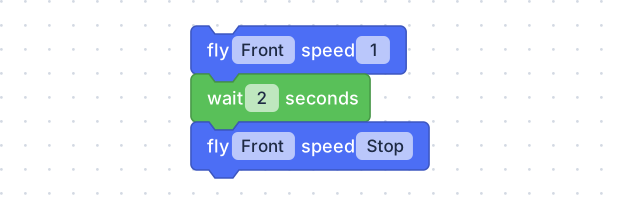
The wait block is in Timing. It is what turns a switch into a step.
It moved, but only for an instant — or all at once
A stack of fly blocks with no wait between them is not four movements. Each
one replaces the last, immediately, so only the final one has any duration —
and it lasts until the landing.
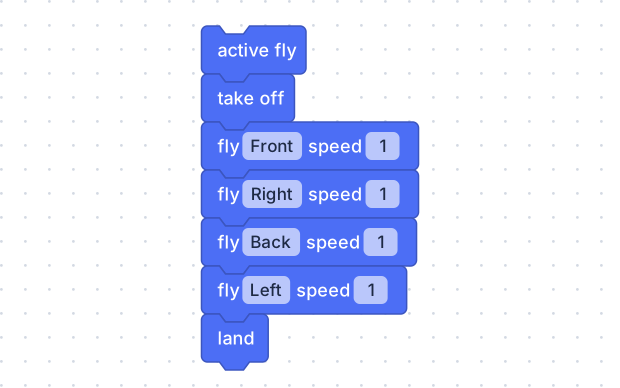
The shape almost every first attempt at a square takes. It generates four fly
calls back to back, and flies one line, to the left.
drone.active_fly()
drone.takeoff()
drone.fly('forward', 1)
drone.fly('right', 1)
drone.fly('backward', 1)
drone.fly('left', 1)
drone.land()
Read those four middle lines as four instructions given in the same instant, because that is what they are. Every side needs its own wait.
It ended up somewhere strange, or would not stop turning
The two Stops do different jobs. fly with Stop stops travelling and
leaves any rotation running; rotate with Stop stops the rotation and leaves
any travel running. A program that starts both and stops one keeps doing the
other.
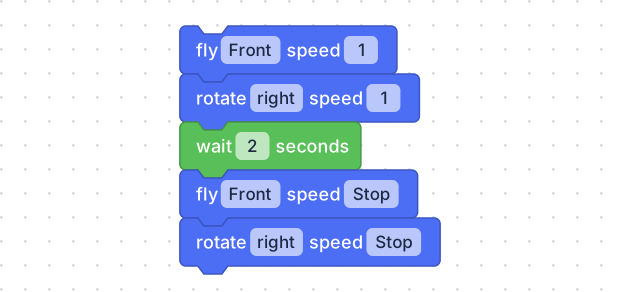
Two movements started, two stopped.
A square that comes out as a spiral is nearly always this: the turn between sides was never stopped, so each side is flown while still rotating.
The Stop blocks are all there and it still sweeps through the corners
The subtle one, and it looks like a program that has learned the rule. A
Stop sets the speed to zero, but the aircraft has real speed to lose and can
only lose it while the program is still running. A Stop with nothing
after it is a block that does nothing.
So fly · wait · Stop · fly · wait · Stop around a square is four Stop
blocks that all do nothing: the next fly sets the forward and sideways speed
together, replacing whatever was there, stopped or not. The aircraft rounds
every corner at full speed and the shape comes out swept.
What does the stopping is a wait after the Stop — half a second is
plenty. A side that turns instead of changing direction gets this free,
because the rotate and its wait are already sitting there doing the job.
The same applies at the end of a flight: a Stop immediately before land
does nothing either. See a Stop needs a moment to
work.
The corners are too shallow to close the shape
A different symptom, and a more common one once the Stops are all there: the
sides are straight, the turns happen, and the path still splays outwards
instead of closing. The turn is too short. rotate at speed 1 turns about 29°
a second, so the tempting wait 1 second between sides is under a third of a
right angle — a corner takes longer than a
second. Raise the wait after the
turn, not the one after the travel.
A block is sitting on its own
Blocks connect by touching: the bump under one drops into the notch on top of the next, and they click together. A block dropped a few pixels clear does not click, and it stays where it is — a small separate program on the same canvas.
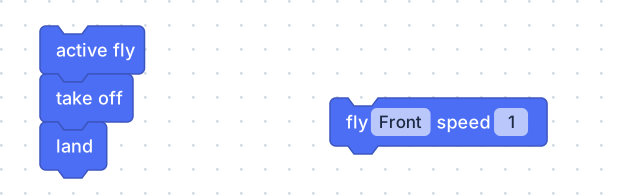
Two programs, not one. The editor is perfectly happy with this.
It is worse than it looks, because a loose block does not get ignored. The
editor generates code for every separate stack on the canvas, roughly top-left
to bottom-right, and runs them one after another — so the loose block above
runs after land:
drone.active_fly()
drone.takeoff()
drone.land()

drone.fly('forward', 1)
Those blank lines are the giveaway. If the code pane has gaps in it, the canvas has stacks in it, and the program is not the one you drew.
To fix it: drag the loose block by its own left edge and drop it so it overlaps the block it should follow. Overlapping slightly is better than placing it neatly underneath — the editor snaps generously to an overlap and stingily to a near-miss.
The program finished and the drone is still in the air
A program that simply runs out of blocks does not land. The aircraft holds where it is until the session times out.
End every program with land. If one is already flying and you have no intention of editing it mid-flight, the toolbar’s Land button does the same job immediately — it stops the program and commands a landing.
It sank instead of climbing
A fresh throttle block arrives set to 0, and 0 is idle: the aircraft descends. Halfway between is 3, which roughly holds height; 6 climbs hard.
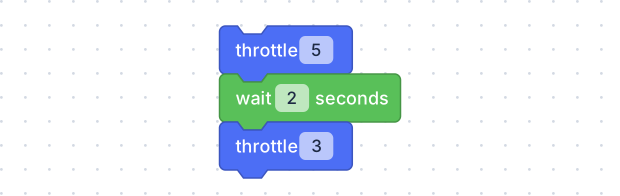
Climb, then hold. Throttle is a switch too — the wait is what gives it a duration.
The battery number never changes
get battery level reads the charge at the instant it runs. A loop that reads it once, before the loop, is looking at the same number on every pass forever. Put the reading inside the loop.
The same is true of every value block, and it is the one rule that catches people who already know how to program.
Still stuck?
Two tools, both already on screen.
The terminal is the black strip along the bottom. Anything the program prints goes there, and so does anything that went wrong. A print block from the Text category, dropped between two flight blocks, tells you how far the program got — which is usually all you need to know.
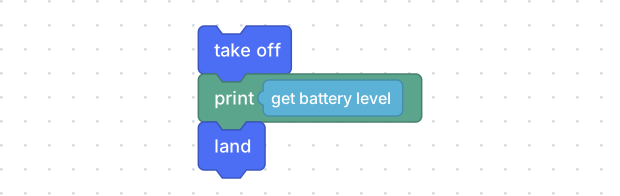
print is the debugging block. Put one anywhere you are not sure about.
The code pane is the <> button on the right edge. One block makes one
line, in the same order, so reading down the Python and reading down the stack
should tell the same story. Where they stop agreeing is where the problem is.